Browser Extensions
Install the Chrome or Firefox extension to surface Mergify Merge Queue and stack controls, plus read report timestamps in your own timezone, directly inside GitHub pull requests.
Why Use the Browser Extensions?
Section titled Why Use the Browser Extensions?The Chrome and Firefox extensions inject a small Mergify panel into every GitHub pull request you open. The panel surfaces the most common actions without typing commands and shows Mergify context (queue state, stack position) directly in the pull request. Use them when you want to:
- Enqueue a pull request as soon as you review it.
- Quickly dequeue without context switching.
- See at a glance whether the pull request is already in one of your queues.
- See a stack’s chain and revision history without opening the CLI.
- Read the timestamps in Merge Queue reports in your own timezone instead of UTC.
Locate the Official Download Links
Section titled Locate the Official Download LinksThe dashboard keeps the canonical links to the Chrome Web Store and Firefox Add-ons listing so you always grab the signed builds.
-
Sign in to the Mergify dashboard.
-
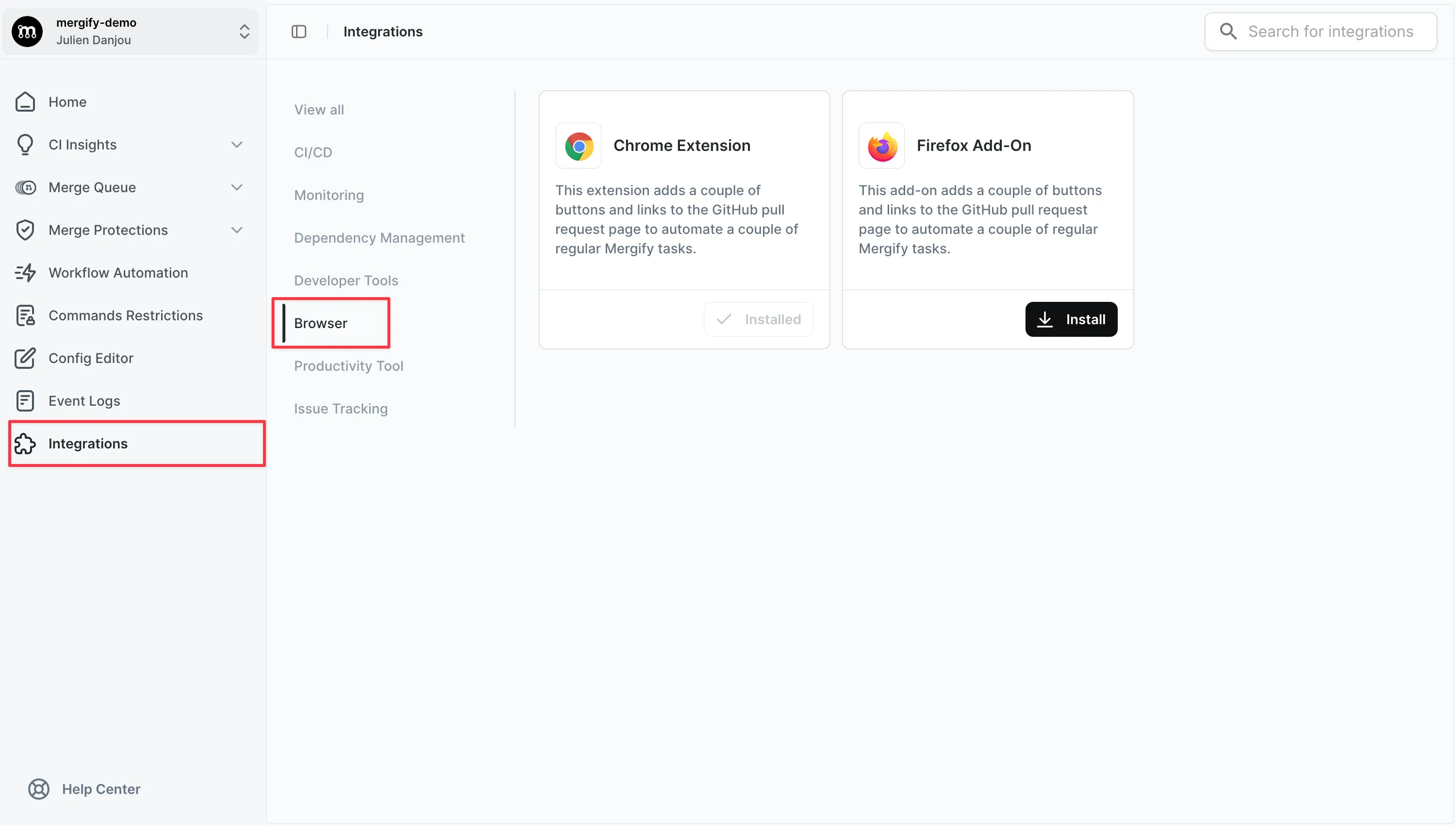
Open Settings → Integrations and pick the Browser category.
-
On the Chrome Extension or Firefox Add-On card, click Install. The button reads Installed when the browser you are using already has it.
Merge Queue → Deployment → Browser Extension carries the same two links, labeled Add to Chrome and Add to Firefox, next to a summary of what the panel adds to a pull request.
Install on Chrome or Firefox
Section titled Install on Chrome or FirefoxChrome
Section titled Chrome- Click Install on the Chrome Extension card, or Add to Chrome on the Deployment page.
- Confirm the permissions in the Chrome Web Store dialog.
Firefox
Section titled Firefox- Click Install on the Firefox Add-On card, or Add to Firefox on the Deployment page.
- Approve the requested permissions in the Firefox Add-ons prompt.
Merge Queue Controls
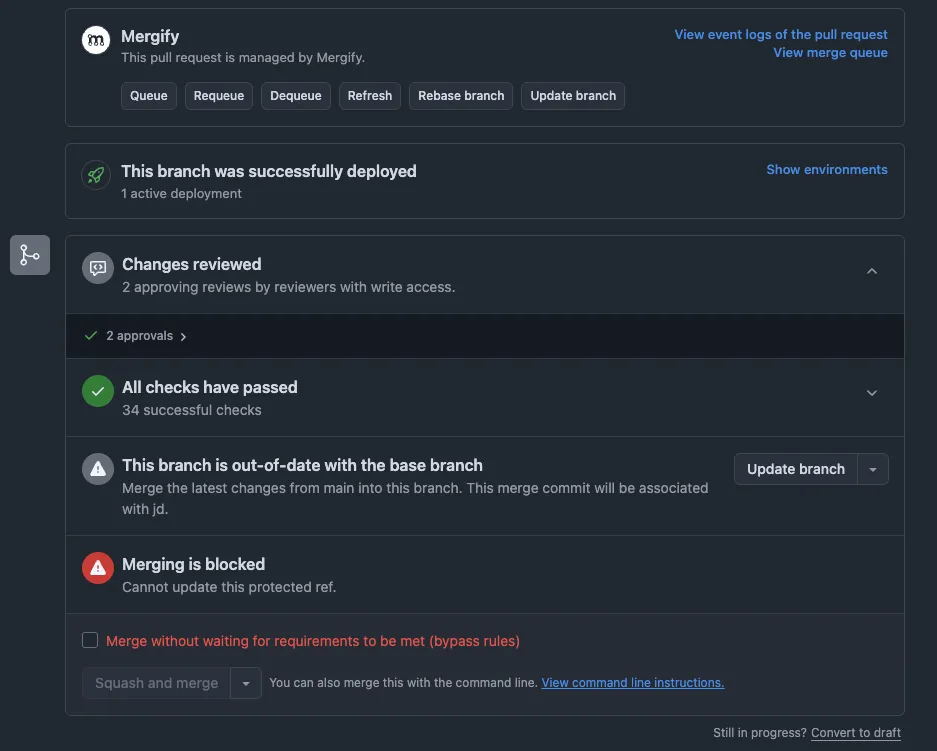
Section titled Merge Queue ControlsAfter installation, reload any pull request on GitHub. A Mergify panel appears above the GitHub merge box, with a button for each command you would otherwise leave as a comment:
-
Queue and Requeue both run
queueto put the pull request into the merge queue. -
Dequeue runs
dequeueto take it back out. -
Refresh runs
refreshto re-evaluate the pull request against your configuration. -
Rebase branch and Update branch run
rebaseandupdateto bring the pull request up to date with its base branch.
Two links next to the buttons open the pull request’s Mergify event history and the merge queue it sits in.
Timestamps in Your Timezone
Section titled Timestamps in Your TimezoneThe extension rewrites the UTC timestamps in Mergify’s Merge Queue reports into your browser’s timezone, so the times already match your local clock. The Mergify engine writes those timestamps in UTC so a report reads the same way for everyone, wherever they are. Without the extension, you have to convert each timestamp in your head to tell whether a pull request entered the queue during your workday, or when it is expected to merge.
There is nothing to set up: the extension follows your browser, so the times stay correct when you travel or switch machines.
Hovering a converted timestamp reveals the original UTC value, so the source time is never lost when you compare notes with a teammate in another timezone. The extension only rewrites Mergify’s own comments and leaves the rest of the pull request as GitHub renders it.
Stacks Panel
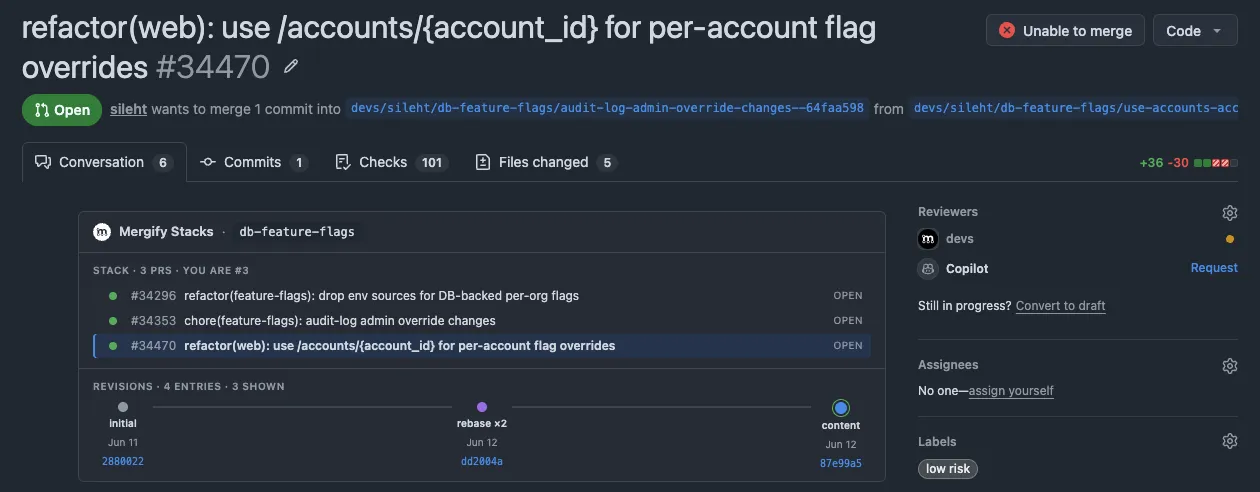
Section titled Stacks PanelFor repositories using Stacks, the extension renders the Mergify Stacks panel inside the pull request. It shows the full chain of stacked PRs, highlights where the current PR sits, and includes the revision-history timeline so you can see how each commit evolved across pushes without leaving GitHub.
Was this page helpful?
Thanks for your feedback!