Using Slack with Mergify
Learn how you can send Slack notifications for Merge Queue events, CI Insights, Test Insights quarantine activity, and pull request activities.

Mergify’s Slack integration sends notifications about your development workflow directly to Slack. You can get updates about Merge Queue activities, CI job completions, test quarantine activity, and pull request events.
Setting Up the Mergify Slack Integration
Section titled Setting Up the Mergify Slack IntegrationBefore configuring specific notifications, you need to connect your Slack workspace to Mergify:
- Go to your Mergify dashboard
- Navigate to Integrations → Slack
- Follow the prompts to connect your Slack workspace
- Authorize the Mergify app for your Slack workspace
Once connected, you can configure different types of notifications based on your team’s needs.
Merge Queue Notifications
Section titled Merge Queue NotificationsGet real-time updates about your Merge Queue activities directly in Slack channels.
Merge Queue notifications cover:
- Pull requests entering the queue
- The queue starting and finishing checks for a pull request
- Pull requests leaving the queue, and pull requests merged out of it
- Queue pauses being created, updated, or deleted
- Scheduled freezes being created, updated, or deleted
To set up Merge Queue notifications:
- In your Mergify dashboard, go to Integrations → Slack
- Select the Slack channel where you want to receive Merge Queue notifications
- Choose the repositories you want to monitor
- Configure notification preferences (all events or specific events only)
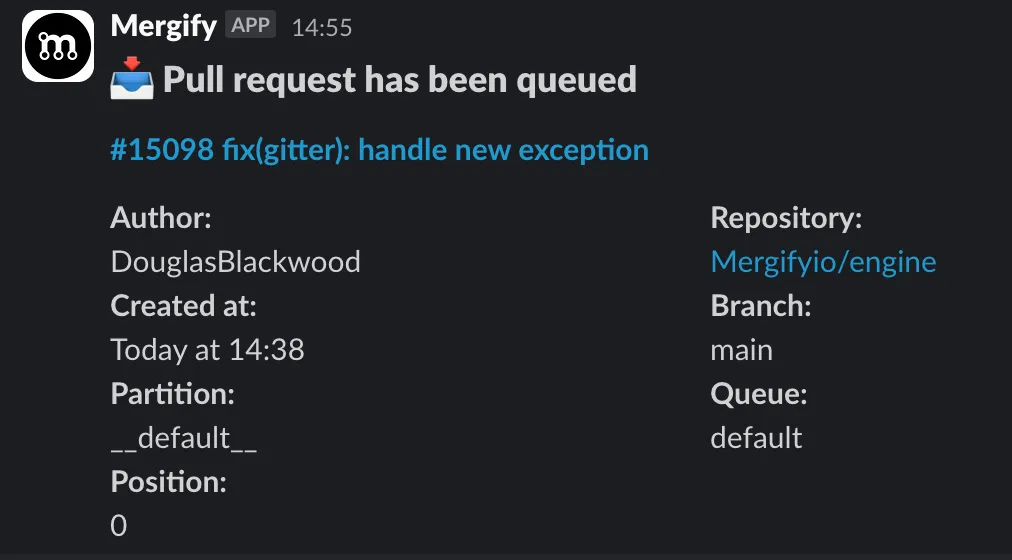
Those notifications are useful for:
- Team Coordination: Keep the entire team informed about merge activities
- Release Management: Monitor critical merges during release periods
- Debugging: Quickly identify when and why queue operations fail
CI Insights Notifications
Section titled CI Insights NotificationsMergify’s CI Insights can send Slack notifications about CI job completions, allowing your team to stay informed about build statuses, test failures, and deployment activities.
A CI Insights notification is posted when a job finishes, and contains:
-
Job and pipeline: the job name, linked to the job in your CI, and the pipeline it belongs to
-
Repository and branch: the repository, linked to GitHub, and the branch the job ran on
-
Conclusion: how the job ended, with a matching emoji, when it finished, and how long it took
-
Pull request: the pull request the job ran on, when there is one
-
A link to CI Insights: a button opening that job’s executions in the Mergify dashboard
To configure CI Insights Slack notifications:
- Enable CI Insights: Make sure you have CI Insights enabled for your repositories
- Configure Notifications: In your Mergify dashboard, navigate to Integrations → Slack
- Set Up Rules: Configure notification rules based on your criteria
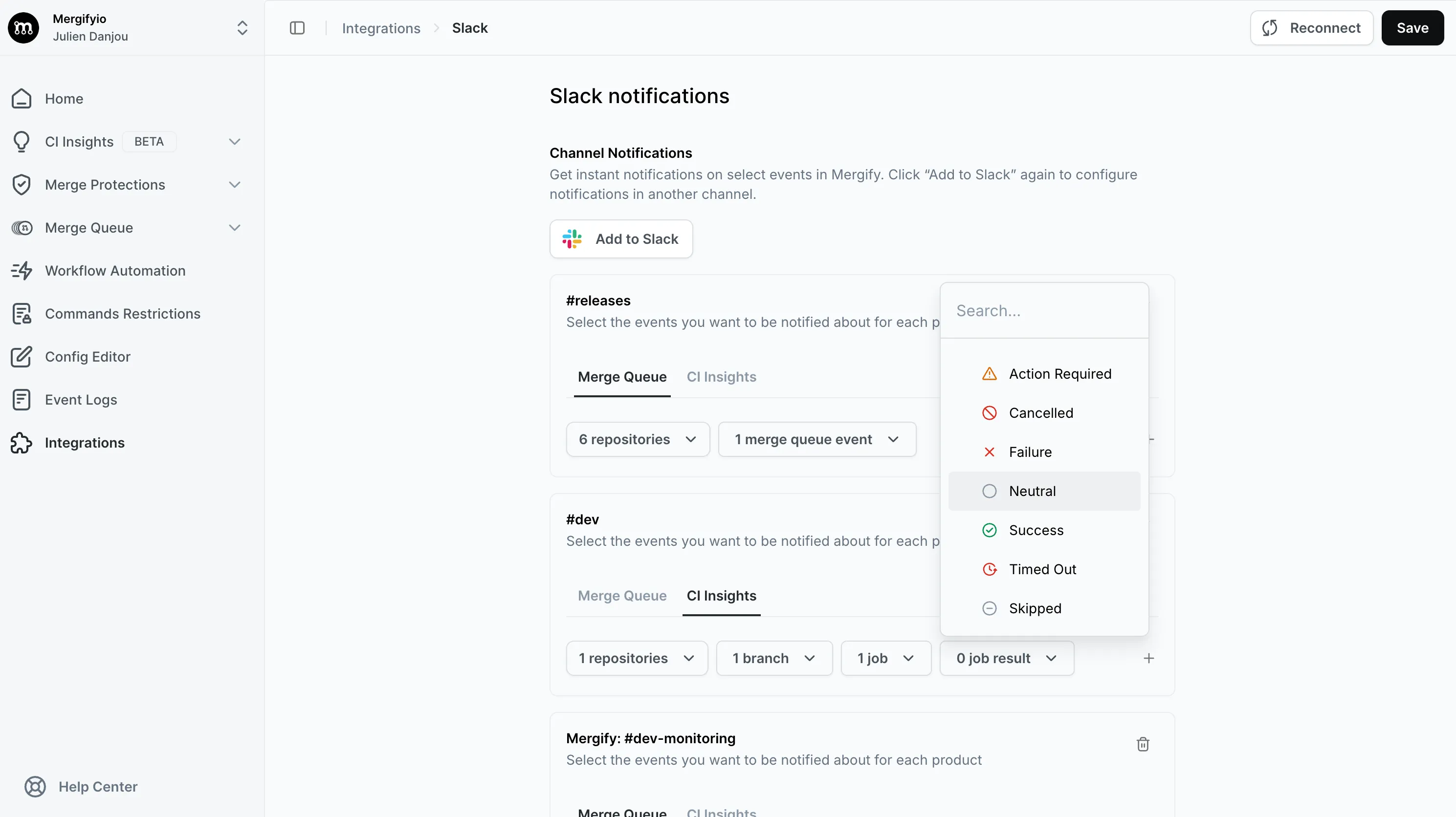
Notification Criteria
Section titled Notification CriteriaYou can filter notifications on:
- Repository: the repositories to watch
- Branch: the branches the job ran on
- Pipeline: the pipelines or workflows the job belongs to
- Job: the job names
- Job conclusion:
action_required,cancelled,failure,neutral,skipped,success, ortimed_out
Each filter is a list of exact values picked from what CI Insights has already
recorded, and leaving one empty means “all”. Wildcards and patterns are not
supported: a job matches only when its branch, pipeline, job name, and
conclusion are among the values you selected, so a release branch has to be
listed by name rather than as release/*.
Example Configurations
Section titled Example ConfigurationsCritical Failures Only
Section titled Critical Failures OnlyMonitor failures on the main branch for production-related jobs:
- Repository:
your-org/your-repo - Branch:
main - Job conclusion:
failure - Job:
deploy,security-scan,integration-tests
Release Monitoring
Section titled Release MonitoringMonitor successes and failures on the release branches you are shipping from, each one listed by name:
- Repository:
your-org/your-repo - Branch:
release/2026.1,release/2026.2 - Job conclusion:
failure,success
Test Failure Alerts
Section titled Test Failure AlertsAlert on failures of your test jobs across all branches, leaving the branch filter empty:
- Repository:
your-org/your-repo - Job conclusion:
failure - Job:
unit-tests,integration-tests
Best Practices
Section titled Best Practices-
Start Broad, Then Narrow: Begin with broader notifications and gradually add filters to reduce noise
-
Use Separate Channels: Consider different Slack channels for different types of notifications (e.g., #ci-failures, #deployments, #security-alerts)
-
Focus on Critical Paths: Prioritize notifications for jobs that affect production deployments or security
-
Monitor Flaky Tests: CI Insights notifications cannot filter on flaky tests. Use the Test Insights notifications below, which fire when a test is quarantined or dequarantined
-
Team-Specific Filters: Configure different notification rules for different teams based on their responsibilities
Test Insights Notifications
Section titled Test Insights NotificationsMergify’s Test Insights can post a Slack message whenever a test is quarantined or dequarantined, so your team sees mitigation activity as it happens (whether a teammate acted from the dashboard or CLI, or Mergify quarantined the test automatically).
Test Insights notifications include:
- Test: The affected test, linked to its details page
- Repository: The repository the test belongs to
- Action: Whether the test was quarantined or dequarantined
- Source: Who acted: a teammate or Mergify’s automatic quarantine
- Health status: The test’s health at the time of the event
- Reason: Why the test was quarantined (on quarantine events)
To configure Test Insights Slack notifications:
-
Enable Test Insights: Make sure you have Test Insights set up for your repositories
-
Connect Slack: In your Mergify dashboard, navigate to Integrations → Slack
-
Add the notification: On a channel, add a Test Insights notification, then choose the repositories to monitor and which events (quarantine, dequarantine) to subscribe to
Test Insights notifications are available on the same plans as the quarantine feature.
Pull Request Notifications via GitHub-Slack Integration
Section titled Pull Request Notifications via GitHub-Slack IntegrationIn addition to native Mergify notifications, you can also receive Slack notifications based on Mergify actions by using the GitHub to Slack integration.
Setting Up GitHub-Slack Integration
Section titled Setting Up GitHub-Slack Integration-
Click on the
Add to Slackbutton -
Invite the GitHub app to the channel you want. Refer to the documentation for more details
-
Make sure you subscribe to the repositories to receive the mentions as private message for the GitHub Slack app
Using Mergify’s Comment Action with Slack Notifications
Section titled Using Mergify’s Comment Action with Slack NotificationsYou can use Mergify’s comment action to mention users in PR comments, which will trigger Slack notifications if the user has GitHub integrated with Slack.
Here’s an example that notifies the PR author when CI fails on hotfix PRs:
pull_request_rules: - name: Notify author on CI failure for hotfixes conditions: - "#check-failure > 0" - "label = hotfix" actions: comment: message: "@{{author}} :warning: The CI failed on this hotfix PR. Please review the issues and address them."This rule:
- Checks for CI failures with
#check-failure > 0 - Ensures the PR has the
hotfixlabel - Comments mentioning the PR author using
@{{author}} - Triggers a Slack notification if the author has GitHub-Slack integration enabled
Use Cases
Section titled Use Cases-
Critical PR Alerts: Notify authors about urgent issues with hotfix or release PRs
-
Review Requests: Automatically mention reviewers when PRs are ready
-
Status Updates: Keep stakeholders informed about important PR milestones
Troubleshooting
Section titled TroubleshootingIf you’re not receiving expected notifications:
-
Check Integration Status: Verify that Slack integration is properly connected in your Mergify dashboard
-
Review Notification Settings: Ensure your notification rules are correctly configured
-
Verify Channel Permissions: Make sure the Mergify Slack app has permission to post in your target channels
-
Test with Broader Filters: Temporarily use broader criteria to confirm the integration is working
-
Check Repository Access: Ensure Mergify has access to the repositories you want to monitor
Was this page helpful?
Thanks for your feedback!